When you log in to a website/platform, your browser will notice the username & password and ask if it should store this for you so it can autofill your login details next time. What we have noticed with this “nice-to-have” is that it can create some login issues when passwords expire/need to be reset.
If you’ve found yourself in a situation where you’ve reset your password and now it won’t accept your new password if you type it in manually when logging in, it’s probably being overwritten by your saved password. To resolve this issue, before you lock out your account, you can follow the below steps to update your saved password and continue using the autofill as usual. In the below example, we’ll be showing images of Google Chrome, but similar steps should be available across different browsers.
Step 1
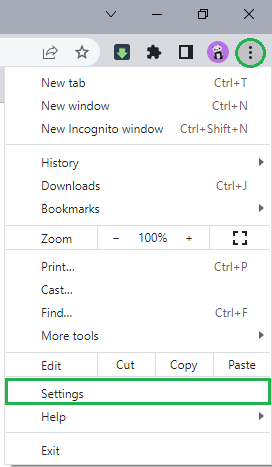
Click on the Menu button (three dots) in the top-right corner of your browser.
Locate and click on the Settings button on the dropdown menu.
Step 2
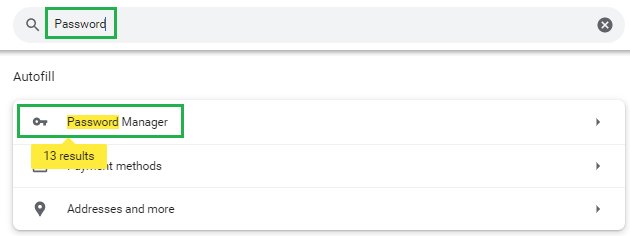
Search for the word Password in the search bar at the top of the screen.
Click on the Password Manager button.
Step 3
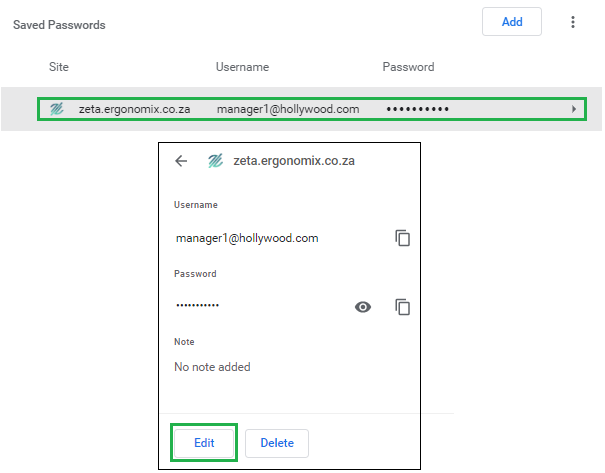
On the list of saved login details, search for the Zeta login details and click on it.
On the new screen, click on the Edit button to update your saved password to the new password and save it for future logins.
You can now close the settings tab and go back to the Zeta login page. You should be able to autofill your login details without issues going forward.